Viewing table details
Full details of a given table can be displayed by double clicking on the row for that table in the Table list. This opens the Table Details window. Alternatively, Right Mouse Click on the highlighted table and select ‘Table Details’ from the pop-up menu.
Note It is possible to open a number of separate table details windows.
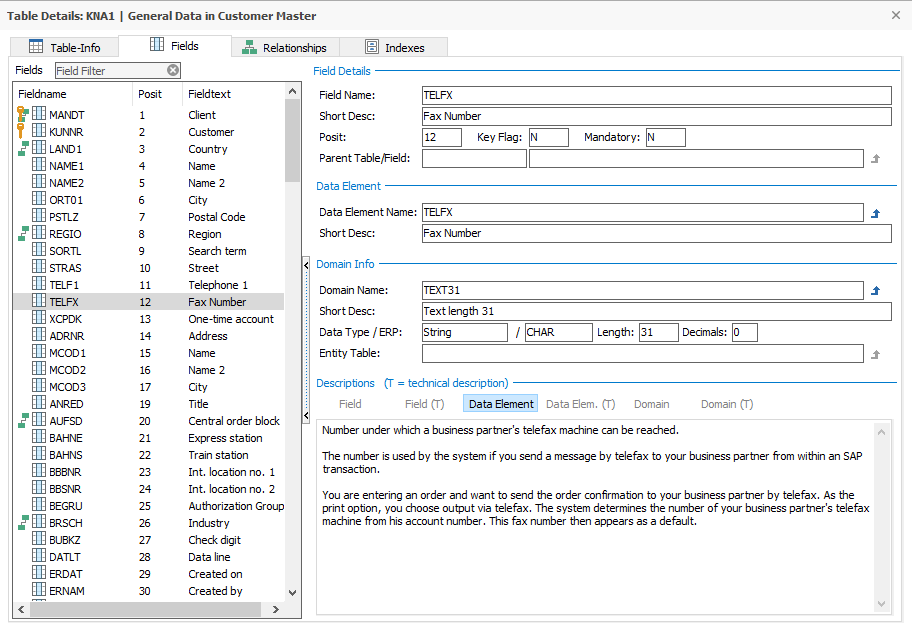
When the Table Details form is opened a list of fields is displayed for that table. Other table information can be displayed from this form using the Buttons on the left-hand side of the form.
The default display format shows details of each field in the table. To the left of each field icon  there may be an additional icon. This can be: -
-
 The Field is part of the Table’s Primary Key
 -
 The Field is part of the Primary Key and also a Foreign Key
 -
 The Field is a Foreign Key field
As each field is selected, further information about that field is shown in the tabbed display to the right. There are three levels of information about each field: The Field Details, the Data Element for that field and the Domain to which the Data Element belongs. The three levels can be displayed by clicking on the appropriate tab.
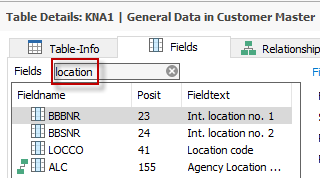
At the top of the Field list is a Field Filter option. This can be used to reduce the list of fields displayed by entering a search string. Any fields matching that search string will then be displayed. The Field Filter search operates on the Fieldname, Posit and Fieldtext attributes.
The Table Information tab  will show details including the descriptive name of the Table and any Views based on the table.
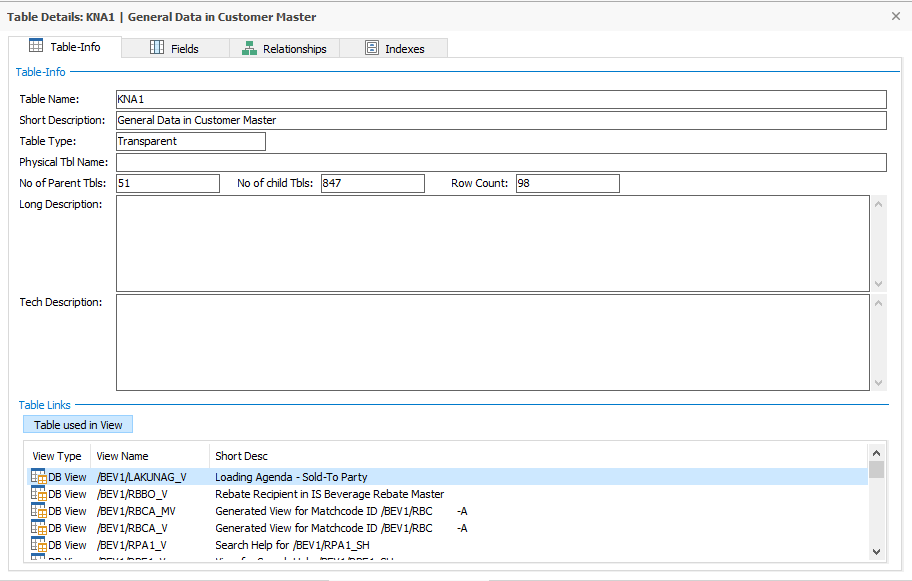
Details of a given view can be displayed by double-clicking the view name. This will display the View details form. See ‘Showing the View fields’ later in this chapter for more details.
The  control gives the following options:
|
Menu |
Usage or For more details see... |
|---|---|
| Add Table <name> to a New Subject Area/Subject Area <name> | Adds the Table to a new Subject Area, or the currently open Subject Area |
| Find Table in… | Locates the Table in the Application Hierarchy. See ‘Finding a table in Application Hierarchy’ below |
| Show Table Relationship form | The related ‘parent’ and ‘child’ tables form will be displayed. See ‘Viewing parent/child relationships’ in this chapter for details. |
Index details
Clicking on the index tab  displays a list of indexes for the currently selected table.
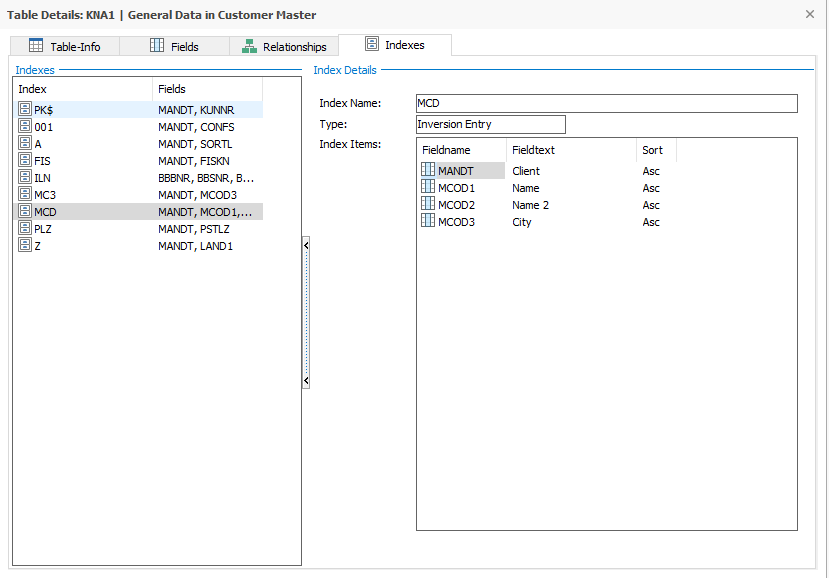
Clicking on an index in the list displays the field components of that index in the box to the right.
Relationship details
Clicking on the Relations tab  reveals a list of all the relationships between the current table and any ‘parent’ tables.
Note This will only find relationships where the current table in the Tables Details is a ‘child’. To find both parent and child relationships see ‘Viewing parent/child relationships’ later in this chapter.
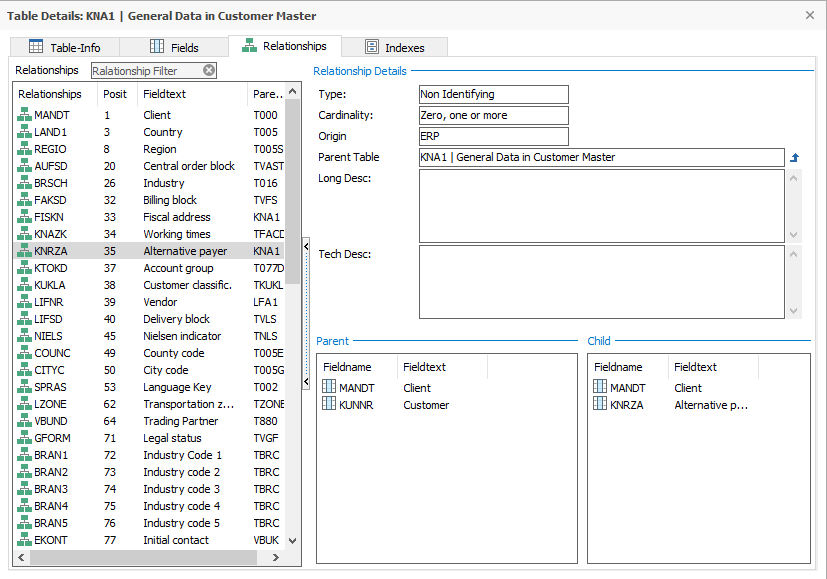
Clicking on a particular relationship will show the fields participating in the relationship at bottom right for both the ‘child’ and ‘parent’ table, along with more information about the relationship at top right.
The ‘Parent Table’ field in the top right panel shows the Parent table for the selected relationship. Clicking on the  icon to the right of this field can be used to display details of the ‘parent’ table in the relationship.
At the top of the Relationships list is a Relationship Filter option. This can be used to reduce the list of relationships displayed by entering a search string. Any relationships matching that search string will then be displayed. The Relationship Filter search operates on the Relationship Field, Posit, Fieldtext and Parent Table attributes.